Articles
SVG vs PNG: Which Format Is Better for Websites and Digital Design?
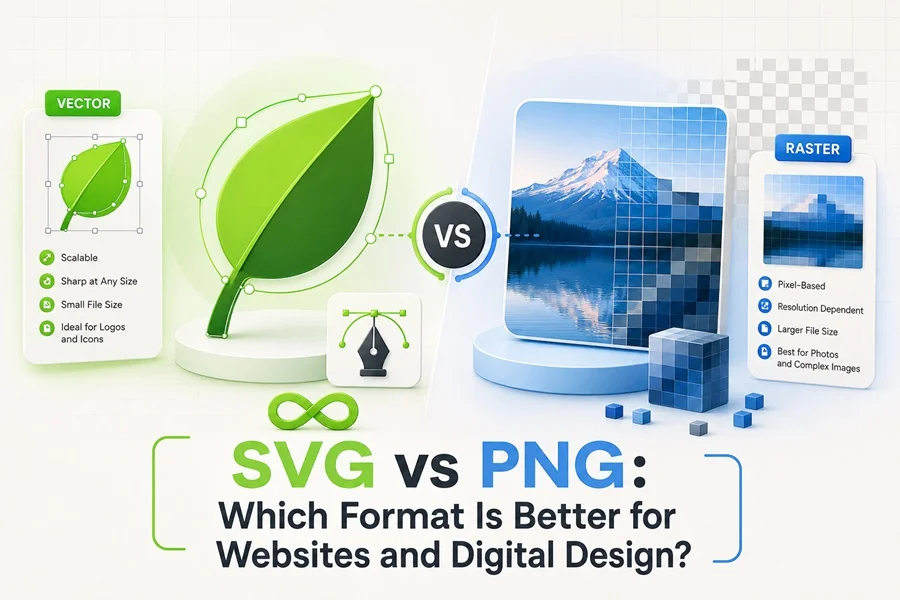
A practical guide to image quality, scalability, performance, accessibility and everyday design use
Introduction
Choosing an image format can look like a minor export decision, but it affects far more than image quality. The format you choose influences how quickly a page loads, how sharply a graphic appears on different screens, how easily developers can adjust it and how well it works with accessibility tools.
SVG and PNG are two of the most useful formats for digital design. Both support transparent backgrounds, both are widely used on websites and both can produce excellent results. However, they store images in fundamentally different ways. SVG is vector-based, while PNG is raster-based. That difference determines where each format performs best.
The short answer is simple: SVG is usually the better choice for logos, icons, interface elements and clean illustrations that must scale. PNG is usually better for screenshots, textured artwork and graphics built from complex pixel-level detail. The complete answer depends on the content of the image, its purpose and the way it will be delivered.
What Is an SVG File?
SVG stands for Scalable Vector Graphics. Instead of recording every pixel in an image, an SVG describes shapes, paths, colors, gradients and text through XML markup. The browser uses those instructions to draw the graphic at the required size.
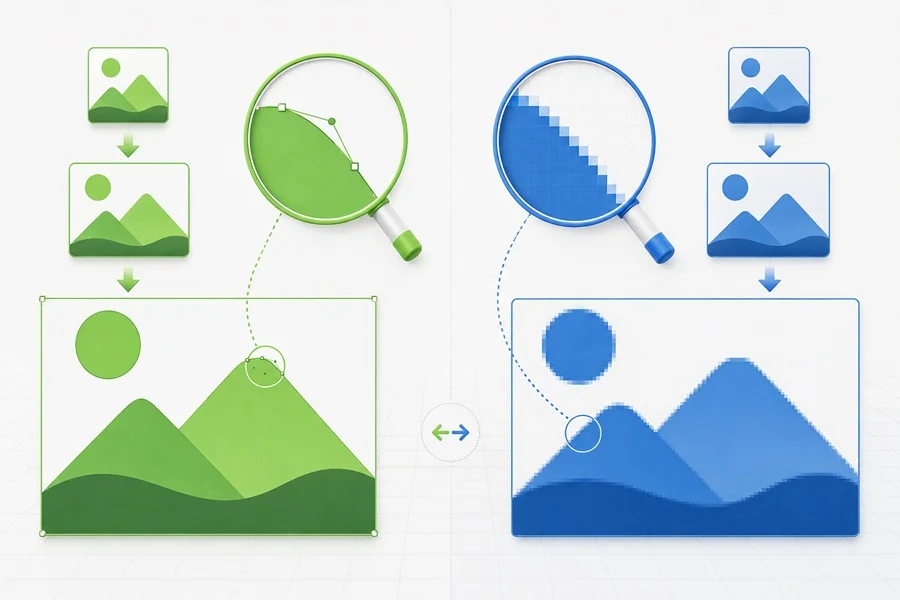
Because the image is rebuilt mathematically, it can be enlarged from a small mobile icon to a billboard-sized graphic without becoming blurry. A well-prepared SVG remains sharp on standard displays, high-density screens and responsive layouts.
SVG is commonly used for:
• logos and brand marks
• interface icons and navigation symbols
• flat and isometric web illustrations
• charts, diagrams and infographic elements
• decorative patterns and geometric backgrounds
• graphics that change color or animate through CSS and jаvascript
An SVG is also editable. Designers can change its paths and colors in vector software, while developers can sometimes modify its appearance directly in code. This makes the format especially useful in design systems and digital products.
What Is a PNG File?
PNG stands for Portable Network Graphics. It is a raster format, which means that the image is stored as a fixed grid of pixels. Every pixel has a defined color and position. When a PNG is displayed at its intended dimensions, it can look extremely clean and detailed. When it is enlarged beyond those dimensions, the pixels become visible and the image loses sharpness.
PNG uses lossless compression. Saving the file does not discard visual information in the way lossy JPEG compression can. It also supports alpha transparency, allowing soft shadows, semi-transparent edges and detailed cutouts to appear against different backgrounds.
PNG is commonly used for:
• screenshots and software interface captures
• complex artwork with textures, grain or painted details
• graphics with soft transparent shadows
• small raster elements that must preserve exact pixels
• images for platforms or workflows that do not accept SVG
SVG vs PNG: The Core Difference
The most important distinction is not the file extension but the way the image is constructed. SVG stores drawing instructions. PNG stores finished pixels. This can be compared to keeping an editable design recipe versus keeping a fixed snapshot of the final result.
A simple icon may require only a few SVG paths, so the file can remain small at any displayed size. The same icon exported as PNG needs a predefined width and height. To support several screen densities, a project may require multiple PNG versions. On the other hand, a complex image containing thousands of shapes, masks or texture fragments can produce heavy SVG markup. In that case, a properly sized PNG may be simpler and faster to render.
Image Quality and Scalability
Scalability is SVG’s clearest advantage. A vector logo can appear at 24 pixels in a mobile header, 240 pixels on a landing page and several thousand pixels in a presentation without losing edge quality. The browser redraws the same shapes for each size.
PNG has a fixed resolution. A 400 × 300 pixel file contains exactly that amount of image information. Reducing its display size normally looks fine, but enlarging it forces the browser or editing software to invent additional pixels. The result may look soft or blocky.
For responsive design, SVG removes much of the guesswork around export dimensions. However, the designer should still test very small sizes. A detailed illustration that looks excellent at 800 pixels may become visually crowded at 80 pixels even though it remains technically sharp. Scalability preserves geometry; it does not automatically preserve legibility.
File Size and Website Performance
Neither SVG nor PNG is always smaller. File size depends on the visual content and the quality of the export. Simple shapes, limited colors and repeated geometry often compress efficiently as SVG. Large raster dimensions, transparent pixels and rich color detail can make PNG files comparatively heavy.
The relationship can reverse for highly complex vector artwork. Thousands of anchor points, embedded raster images, unused groups, clipping masks and editor metadata can turn a seemingly simple SVG into a large file. Complex vector markup may also require more browser work than a flattened raster image.
Before publishing either format:
• remove hidden objects, unused layers and unnecessary metadata
• simplify excessive vector points without changing the visible design
• export PNG files at the dimensions users actually need
• compress files with a trusted optimization tool
• test the final asset in a real page rather than judging only the source file
Performance should be measured, not assumed. Compare the optimized file sizes and check how the graphic behaves on a mobile device. A clean SVG is often ideal for interface graphics, but a complicated illustration may perform better as an appropriately sized raster image.
Transparency, Shadows and Visual Detail
Both formats support transparency, but they handle visual complexity differently. SVG transparency applies to vector objects, fills, strokes, masks and gradients. It works beautifully for clean artwork and controlled effects.
PNG handles pixel-level transparency, making it reliable for soft shadows, glow, blur, hair, grain and irregular edges. A design that depends on subtle raster texture can become unnecessarily complicated if forced into SVG. Flattening the final result to PNG may produce a more predictable appearance.
The practical rule is to preserve the native character of the artwork. Keep shape-based graphics as vectors. Keep pixel-based effects as raster images unless there is a clear reason to rebuild them with vector filters.
Editing and Customization
SVG offers far greater flexibility after export. Individual colors, paths and groups can remain editable. A developer may change an icon color through CSS, animate selected elements or adapt a graphic for dark mode without requesting an entirely new file.
This flexibility is one reason designers frequently use vector illustrations for landing pages, onboarding screens, presentations and branded content. A single source can be recolored, resized and adapted to several layouts while maintaining a consistent visual style.
PNG is a finished image. Colors can still be adjusted in raster software, but the original objects are no longer independent. Significant editing usually requires the layered source file. PNG is therefore excellent for delivery, preview and compatibility, but less suitable as the only editable master file.
Accessibility and SEO
File format alone does not make an image accessible or search-friendly. The way it is embedded and described matters. An informative image should have a useful text alternative. A decorative image should be hidden from assistive technology so it does not create noise.
When an SVG is inserted through an image element, it can use alternative text in the same general way as a PNG. Inline SVG requires more deliberate handling. Informative inline graphics may need an accessible name and an appropriate image role, while decorative graphics should be excluded from the accessibility tree.
SVG markup can contain readable titles, descriptions and text, but that is not a substitute for clear surrounding content or correct HTML. PNG has no readable internal structure for search engines, so its filename, alternative text, caption and page context carry the descriptive meaning. In both cases, avoid stuffing keywords into alt text. Describe the purpose of the image naturally.

Security Considerations for SVG
SVG is an XML document rather than a simple block of pixels. Depending on how a website accepts and serves it, SVG can contain scripts, external references or other unwanted code. This matters most when a platform allows users to upload SVG files.
Use trusted assets, sanitize user-provided SVG files and configure the server correctly. Designers should also remove unnecessary editor data and embedded resources before delivery. PNG does not carry executable vector markup, which makes it a simpler choice for some upload systems, email tools and content management workflows.
When to Use SVG
Choose SVG when the artwork is primarily composed of shapes and must remain crisp or customizable. Strong use cases include:
• logos that appear at several sizes
• navigation icons and interface controls
• flat illustrations and isometric scenes
• charts and simple infographics
• responsive decorative graphics
• graphics that need color changes, interaction or animation
For interface projects, reusable SVG icons are particularly practical because they scale cleanly and can be adapted to a design system. Consistent stroke width, viewBox dimensions and naming are just as important as the format itself.
SVG is not automatically the best choice merely because the source was created in vector software. If the file contains embedded photographs, hundreds of tiny objects or heavy filter effects, test a raster export as well.
When to Use PNG
Choose PNG when pixel-level detail or broad compatibility matters more than infinite scaling. Typical use cases include:
• product and interface screenshots
• artwork with grain, blur and complex textures
• transparent raster cutouts and soft shadows
• small graphics used at a fixed size
• platforms that do not allow SVG uploads
• email graphics that require predictable rendering
Export the PNG close to its intended display dimensions, while allowing enough resolution for high-density screens when required. Do not upload a huge source image and rely on HTML or CSS to shrink it. The browser still has to download the original file.
Best Format for Common Design Assets
Logos
Use SVG for most website logos because it stays sharp across headers, footers and high-density displays. Keep a PNG version for systems that do not support SVG and for specific social or email uses.
Icons
SVG is normally the strongest option. It supports clean scaling and styling, and a single file can cover many display sizes. Pixel-art icons or fixed raster artwork are exceptions.
Web Illustrations
Use SVG for clean vector artwork with manageable complexity. Use PNG when the illustration contains rich textures, blur or an excessive number of vector elements. For large hero artwork, compare both optimized versions.
Screenshots
Use PNG when sharp interface text and lossless pixel detail are important. If file size becomes too large, a modern raster format may be more efficient, but converting a screenshot to SVG does not turn its pixels into meaningful vectors.
Infographics and Charts
SVG works well for simple charts, diagrams and responsive infographic components. PNG is useful when the final piece is highly detailed, must be shared as a single fixed image or will be uploaded to a platform with limited SVG support.
Social Media Graphics
Most social networks expect raster uploads, so PNG is usually the practical delivery format. Keep the editable vector source separately and export each platform size from that master.
Common Mistakes to Avoid
Using PNG for every logo and icon. This creates unnecessary resolution variants and can produce blurry results.
Assuming every SVG is lightweight. Unoptimized paths, embedded images and editor data can make a vector file surprisingly large.
Converting photographs to SVG. Automatic tracing often creates huge files without meaningful quality benefits.
Uploading oversized PNG files. A giant transparent image can slow a page even when it is displayed as a small element.
Ignoring small-size legibility. A scalable illustration may still need a simplified version for compact placements.
Keeping no editable master. A PNG should not replace the original AI, EPS or SVG source when future customization is expected.
Forgetting accessibility. Important graphics need useful text alternatives, regardless of format.
Trusting unknown SVG uploads. User-supplied SVG files should be sanitized before they are served by a website.
A Practical Export Workflow
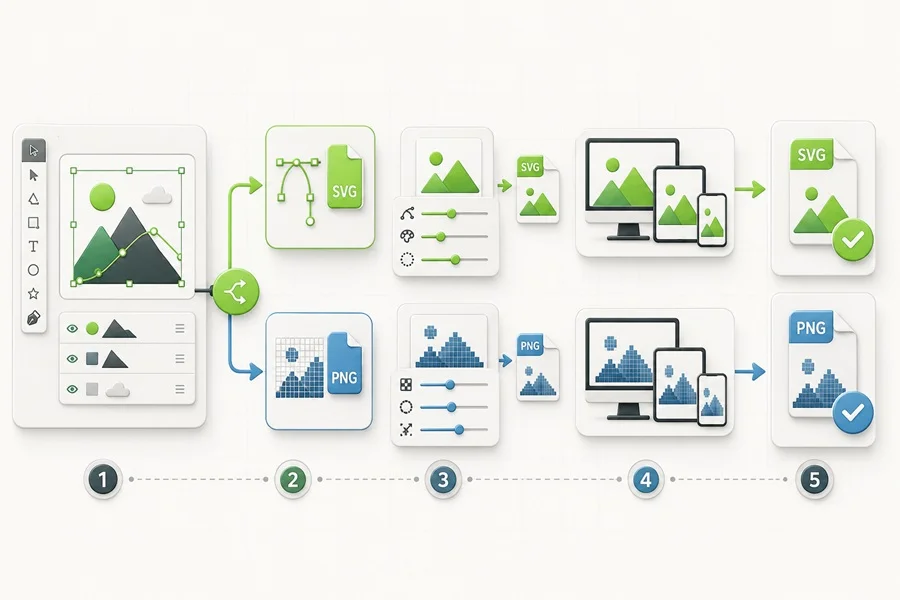
1. Identify the visual type. Decide whether the design is fundamentally shape-based or pixel-based.
2. Keep the editable master. Preserve the original AI, EPS, SVG or layered raster source before creating delivery files.
3. Export the natural format. Use SVG for clean vectors and PNG for detailed raster artwork.
4. Optimize a copy. Remove unnecessary information without damaging the master file.
5. Test realistic dimensions. Check desktop, mobile and high-density displays.
6. Compare performance. Measure optimized file size and page behavior rather than relying on assumptions.
7. Add accessible descriptions. Write meaningful alt text only when the image communicates information.
8. Keep a fallback when needed. Supply PNG alongside SVG for platforms with restricted format support.
Quick Decision Checklist
Use SVG if most of the following are true:
• the design consists mainly of paths, shapes and text
• it must scale to many sizes
• colors or individual elements may need editing
• the graphic will be used as a logo, icon, diagram or clean illustration
• the optimized SVG is smaller and renders smoothly
Use PNG if most of the following are true:
• the design contains complex pixel detail, texture or soft effects
• it will be displayed at a predictable size
• the destination does not accept SVG
• the asset is a screenshot or raster composition
• a tested PNG is smaller or more reliable than the vector version
Final Verdict: Is SVG or PNG Better?
There is no universal winner, but there is a reliable starting point. Use SVG for scalable, shape-based graphics such as logos, icons, interface elements and clean illustrations. Use PNG for fixed-size raster graphics such as screenshots, detailed textures and artwork with complex transparency.
The strongest workflow is not to force every asset into one format. Match the format to the visual information, optimize the result and test it in its real context. Designers who keep editable masters and deliver the right format give developers more flexibility, improve website performance and protect image quality across devices.
If you want to experiment before committing to a format, start with free vector graphics and test both SVG and PNG exports in your layout. The best choice becomes much clearer when you compare the actual asset at the size, background and screen density where it will be used.