Articles
How to Remove a Checkered Background from an Image
A practical guide to transparent checkerboard, PNG files, Photoshop, and real background removal.
Introduction
You open a PNG file and see a gray and white checkerboard behind the logo, icon, or photo. It is easy to assume that the squares are part of the image and need to be removed. In most cases, they are not pixels at all. The pattern is only an editor preview that shows where the image is transparent.
That distinction matters. If the checkerboard represents transparency, there is nothing to erase. You only need to place the image on a background, export it in a format that keeps transparency, or change how the app previews transparent areas. If the squares are actually baked into the image, you need a different workflow to select and delete or replace those pixels.
This guide explains both situations. It shows how to tell them apart, how to save a transparent image correctly, how to replace transparency with a color or photo, and how to remove a real background in Photoshop or an online background remover.
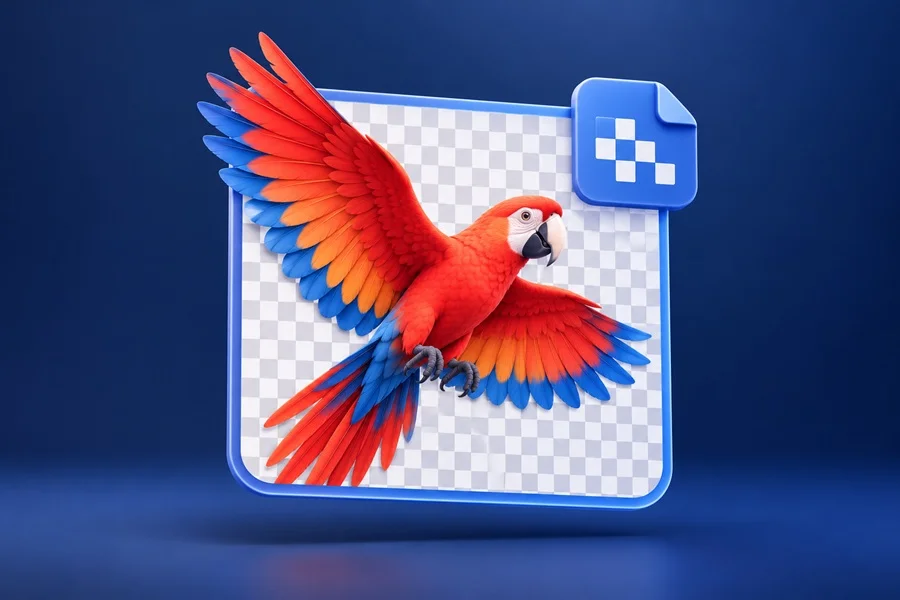
A checkerboard is normally a preview of transparent areas, not a background inside the image file.
What a Checkered Background Actually Means
A checkerboard background is a visual convention used by Photoshop, image editors, browsers, and design tools. It marks pixels with zero opacity. The image does not contain a visible gray and white grid the software draws that grid behind the artwork so you can see which areas are empty.
Transparency works like a window. A fully opaque pixel hides everything behind it. A transparent pixel reveals the page, website, color, or photo underneath. When you place the same transparent PNG on a dark website, a colored poster, or a white document, the empty areas will show each new background instead of a checkerboard.
The checkerboard can look slightly different from one application to another. Photoshop lets you change its size and colors in Transparency and Gamut preferences. That setting affects only your workspace, not the downloaded or exported file.
How to Tell Whether the Checkerboard Is Real
Before editing, test the image. This simple check prevents you from damaging a file that is already transparent.
• Open the file in a second app or upload it to a design canvas with a solid colored background. If the squares disappear and the color shows through, the file is transparent.
• Look at the file format. PNG, WebP, SVG, PSD, AI, EPS, and some PDF files can support transparency. A standard JPG or JPEG cannot.
• In Photoshop, check the Layers panel. A transparent image often has empty areas around the visible object, while a checkerboard that is baked into the artwork appears as normal pixels on a layer.
• Zoom in. Real checkerboard pixels remain part of the image and have visible edges, compression artifacts, or color variations. A preview checkerboard stays behind the image and never becomes selectable artwork.
A common mistake is taking a screenshot of a transparent image. A screenshot captures the interface preview, including the checkerboard. The result is then a new image with real squares. Whenever possible, download or export the original PNG, SVG, or WebP instead of taking a screenshot.
How to Remove a Checkered Background in Photoshop
If the checkerboard is only Photoshop’s transparency preview, you do not need to remove it. Choose the result you want and use one of the methods below.
Place the Transparent Image on a New Background
1. Open the image in Photoshop.
2. Go to Layer, New Fill Layer, then choose Solid Color. Pick the background color you want.
3. Drag the new fill layer below the transparent image layer in the Layers panel.
4. For a photo background, use File, Place Embedded, then drag the new photo layer below the transparent image.
5. Save a PSD if you want to keep the layers editable. Export a JPG when the final image should have a solid or photo background.
This method changes only the composition around the object. It does not alter the edges or transparency of the original image, so you can replace the background again later.
Hide the Photoshop Checkerboard Preview
To make transparent areas look white while you work, add a white Solid Color fill layer under the artwork. Do not flatten the image if you still need transparency later. You can also change the preview itself in Photoshop preferences: open Preferences, then Transparency and Gamut, and choose a different grid size or grid color. This changes your display only.
Remove a Checkerboard That Is Baked Into the Image
If the squares remain visible after you place the image on a colored background, they are real pixels. The correct technique depends on how clean the background is and how detailed the subject is.
1. Duplicate the original layer first so you always keep an untouched copy.
2. Choose Select, Color Range. Click one of the light checkerboard squares, then adjust Fuzziness until Photoshop selects the repeating background without taking important parts of the subject.
3. Hold Shift and click the second checkerboard color to add it to the selection if needed.
4. Review the selection at 100 percent zoom. Refine it with Select and Mask when hair, fur, translucent objects, or thin lines are involved.
5. Add a layer mask instead of pressing Delete. A mask is reversible and lets you repair small edge problems with a soft brush.
6. Place a solid color behind the image to inspect halos. Remove remaining gray or white fringes using the mask or the Defringe command only when necessary.
Do not expect Color Range to solve every image perfectly. A low-resolution screenshot, JPEG compression, and checkerboard colors that overlap with the subject can make a clean selection impossible. In that case, manual masking is usually faster than repeatedly increasing Fuzziness.
How to Save an Image With a Transparent Background
Transparency is preserved only when you choose a file format that supports an alpha channel. The alpha channel stores opacity information for every pixel. When you export the image, the visible subject remains and the empty areas stay transparent.
| Format | Transparency support | Best use |
|---|---|---|
| PNG | Yes | Logos, icons, illustrations, cutout photos, and web graphics that need clean transparent edges. |
| WebP | Yes | Modern web images where smaller file sizes are important and browser support is acceptable. |
| SVG | Yes | Vector icons, logos, and illustrations that need to stay sharp at any size. |
| JPG or JPEG | No | Photos with a complete background. Transparent areas become white or another flattened color. |
Keep a PSD when you need an editable Photoshop source with layers, masks, and transparent areas preserved. For a final image, choose File, Export, Export As. Select PNG, confirm that Transparency is enabled, and export. If you choose JPG, Photoshop must flatten the image because JPEG has no transparency support. A white background is common, but the exact result depends on the options you choose before export.
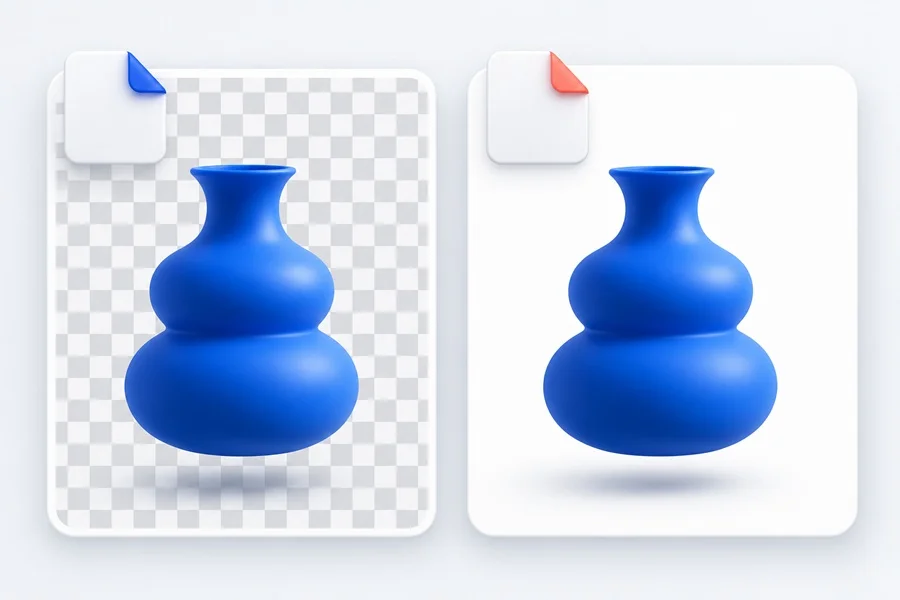
The same object can remain transparent or be flattened on a white background, depending on the export format.
Why a Transparent Image Looks White After Export
A transparent PNG can look white for two different reasons. First, the app or website may place it on a white page. The pixels are still transparent white is simply the background behind them. Test this by putting the same file over a dark color.
Second, the image may have been exported as JPG or flattened onto a white layer before export. In that case the white background is part of the file. Open it in Photoshop and check whether there is an opaque white layer or whether the file contains only a single flattened layer.
Some apps also show a white thumbnail preview for transparent files. A thumbnail is not reliable proof that transparency is missing. The only useful test is placing the image over another background.
How to Replace Transparency With a Color or Photo
Replacing a transparent background is simple because transparency is empty space. In Photoshop, Canva, Figma, Adobe Express, and most design apps, put the background below the transparent image. The transparent areas will reveal it automatically.
• For a product image, use a clean solid color that supports the product without reducing contrast.
• For a social media post, use a photo or gradient but check that the main subject remains readable at small sizes.
• For a website icon, keep the surrounding background consistent with the interface and export SVG or PNG as needed.
• For printing, flatten the final composition only after you have checked the required color mode and resolution.
If the original object has pale edges, test it on both light and dark backgrounds. A white halo may be invisible on a white canvas but obvious on navy, black, or saturated colors. Fix the mask before you commit to the final background.
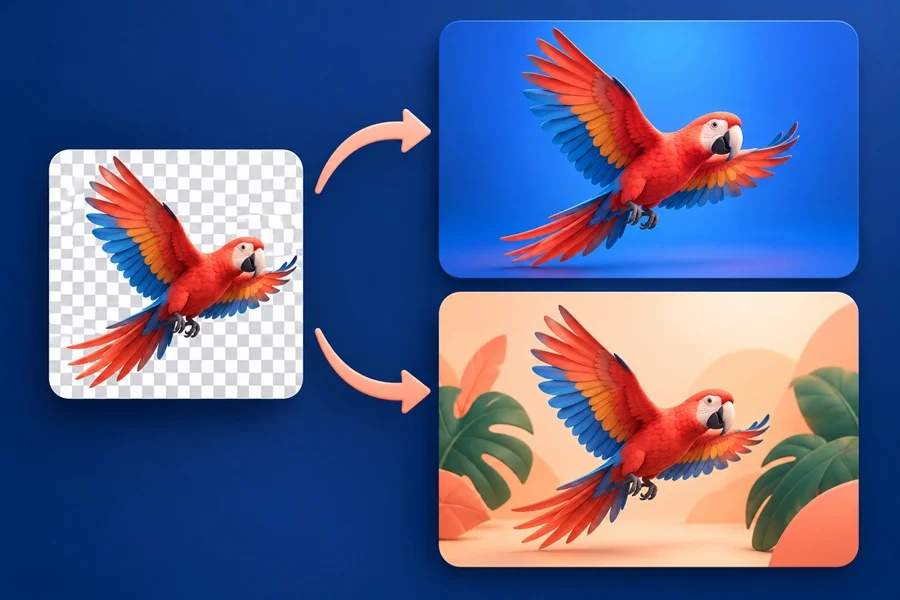
A transparent cutout can be reused on any new background without rebuilding the subject.
How to Remove a Real Background From an Image
Removing a real background is different from hiding a transparency preview. You need to separate the subject from the pixels behind it. Photoshop has several options, and the best one depends on the image.
For a product on a plain background, start with Remove Background in the Properties panel. Photoshop creates a layer mask that you can refine. For portraits, use Select Subject, then Select and Mask to improve hair and clothing edges. For objects with straight edges or strong contrast, the Object Selection tool or Pen tool can give more control.
A dedicated background remover can be useful when you need a quick first cutout, especially for simple product shots and portraits. Still inspect the result at full size. Automatic removal often needs small corrections around hair, fingers, glasses, transparent materials, shadows, and fine details.
After removing the real background, export as PNG or WebP if the final file needs transparency. Exporting as JPG immediately replaces the transparent area with a flattened background.
Common Problems and Fixes
The checkerboard appears after I save the image
You probably saved a screenshot or exported the visible preview instead of the source file. Return to the original PNG, SVG, or design file and export directly. Do not capture the screen area that shows the checkerboard.
The background becomes white on my website
Confirm that the uploaded file is a PNG, WebP, or SVG with transparency. Then check the page or container background. If the file is transparent, it will display the color of its parent element. A white website section will naturally make it look white.
There is a white or gray outline around the subject
This is usually a leftover from the original background or an imperfect mask. View the image over a contrasting solid color, then paint on the layer mask with a small soft brush. For severe halos, use Select and Mask with a very small Shift Edge adjustment and re-check the result. Avoid large shifts because they can eat into the subject.
The image lost transparency after I sent it to someone
Some apps convert images during sharing or upload. Send the original PNG or SVG as a file attachment rather than pasting it into a chat or document. Ask the recipient to download the file instead of copying a preview image.
Frequently Asked Questions
Is the checkered background part of the image
Usually no. It normally indicates transparent pixels. Test the file on a colored background to confirm. If the squares stay visible, they are part of the image and must be removed with a selection or mask.
Can JPG files have transparent backgrounds
No. Standard JPG and JPEG files do not support transparency. Use PNG, WebP, SVG, or another format that supports an alpha channel.
Why does my PNG show a checkered background in Photoshop
Photoshop uses the checkerboard to show transparency. The grid is not included when you place the PNG on a page or export it as a transparent PNG.
How do I make the background transparent instead of white
Remove or mask the white pixels, then export as PNG or WebP with Transparency enabled. If the white background is complex or touches light parts of the subject, use a layer mask and refine the edges instead of deleting pixels directly.
Can I change the checkered background to another color
Yes. Add a color or photo layer beneath the transparent object. In Photoshop, you can also change the checkerboard preview in Transparency and Gamut preferences, but that does not change the file itself.
Final Takeaway
A checkered background usually means the image is already transparent, so the right solution is often to save it as PNG, SVG, or WebP and place it over the background you want. When the squares are baked into the image, use a non-destructive selection and layer mask to remove them. Knowing the difference helps you avoid flattening files, losing transparency, and exporting the wrong format.